 Callery
Find the conversation
you remember.
You remember the delivery, the appointment, or the promise. Search your saved call recordings, open the conversation, and listen to what was said.
Start with the person or the date
If you know who you called or roughly when, browse by caller and narrow the date range. You can organize and play recordings without transcribing every call.
This starts with original filenames that Callery recognizes. Copy recordings from an accessible phone folder without renaming them, and check a small import. A generic filename cannot supply caller or historical call-date details that are missing. See recording setup and filename requirements.
Search words from a conversation
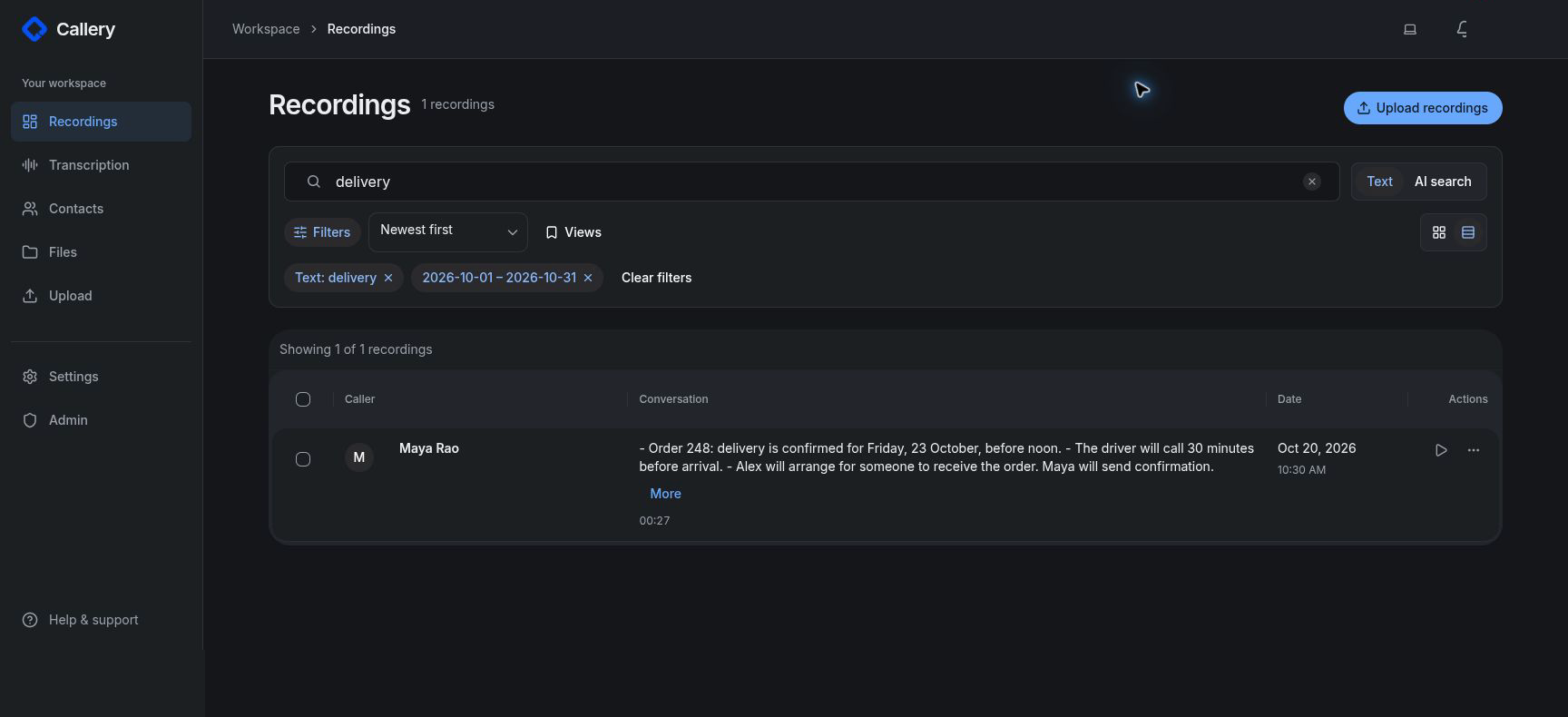
Add transcripts to the recordings you want to search. Choose Text in the recordings workspace and enter a word or phrase you remember. Text search also checks stored caller details and available summaries, so a matching result may come from those fields rather than the spoken words.
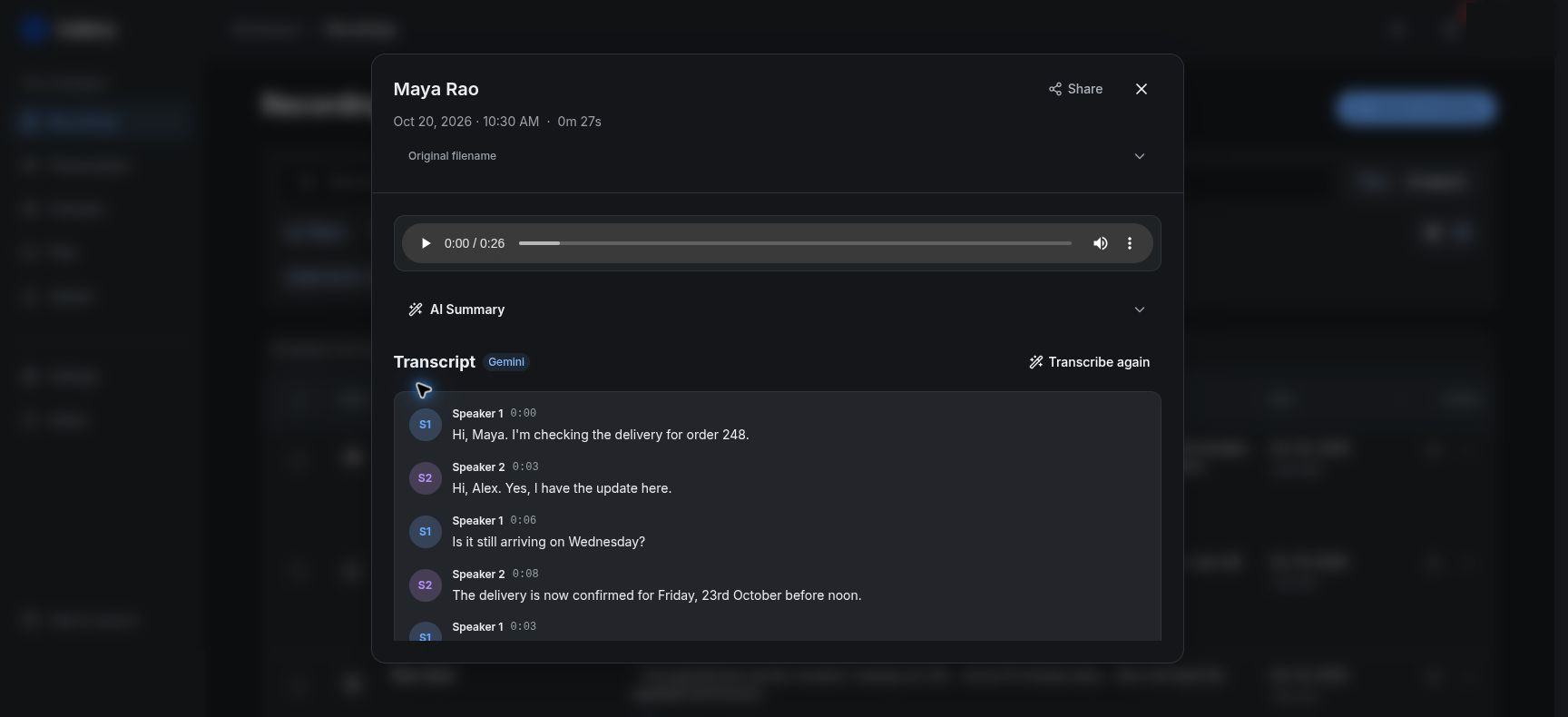
For example, try delivery, then open a matching call and read the transcript to check the context. A recording without a transcript can still be found by its saved details, but Callery cannot search untranscribed audio for what was said.
Describe what you talked about
When AI search is configured for your instance, choose AI search and describe the discussion—for example, rescheduling a delivery. It searches indexed transcript passages by meaning, which can help when you do not remember the exact wording.
AI search needs configured processing services and transcripts that have been indexed. It can return relevant passages from the conversations it covers. Results are suggestions to review against the transcript and original audio, not a guarantee that every relevant call will appear.
Check search coverage
The workspace shows search coverage so you can see which recordings have indexed transcripts. Recordings still waiting for transcription or indexing are not covered by that search. You can index saved transcripts without transcribing the audio again.
If AI search cannot use its meaning-search service, Callery may show keyword fallback and explain the mode. Check that message and your coverage before interpreting an empty result as proof that a conversation never happened.
The screenshot above shows an actual Text search with fictional recordings. It does not demonstrate a completed AI search.
Read the passage. Return to the audio.
Open the matching recording to read the transcript and play the original. Where transcript timing is available, a passage can take you back to its place in the audio. Untimed transcripts do not provide an exact playback position.
Use summaries to get your bearings, then check important details in the recording itself. Transcription, summaries, and search can make mistakes.
Keep years of recordings useful
Moving files off a phone should not make the conversations harder to find. Keep an independent backup of the original folder and preserve filenames when copying recordings between phones, computers, or downloaded cloud-storage folders.
Follow the backup and phone-change guide or read the Callery user guide for the upload, transcript, and search workflow. Callery does not automatically sync Google Drive or retrieve a dialer’s private recordings.